





Free Grok Imagine Image 2.0 for Campaigns
Sign In

Free Grok Imagine Image 2.0 for Campaigns

Describe a campaign visual and generate a draft for review.

CreditsCost

Grok Imagine Image 2.0

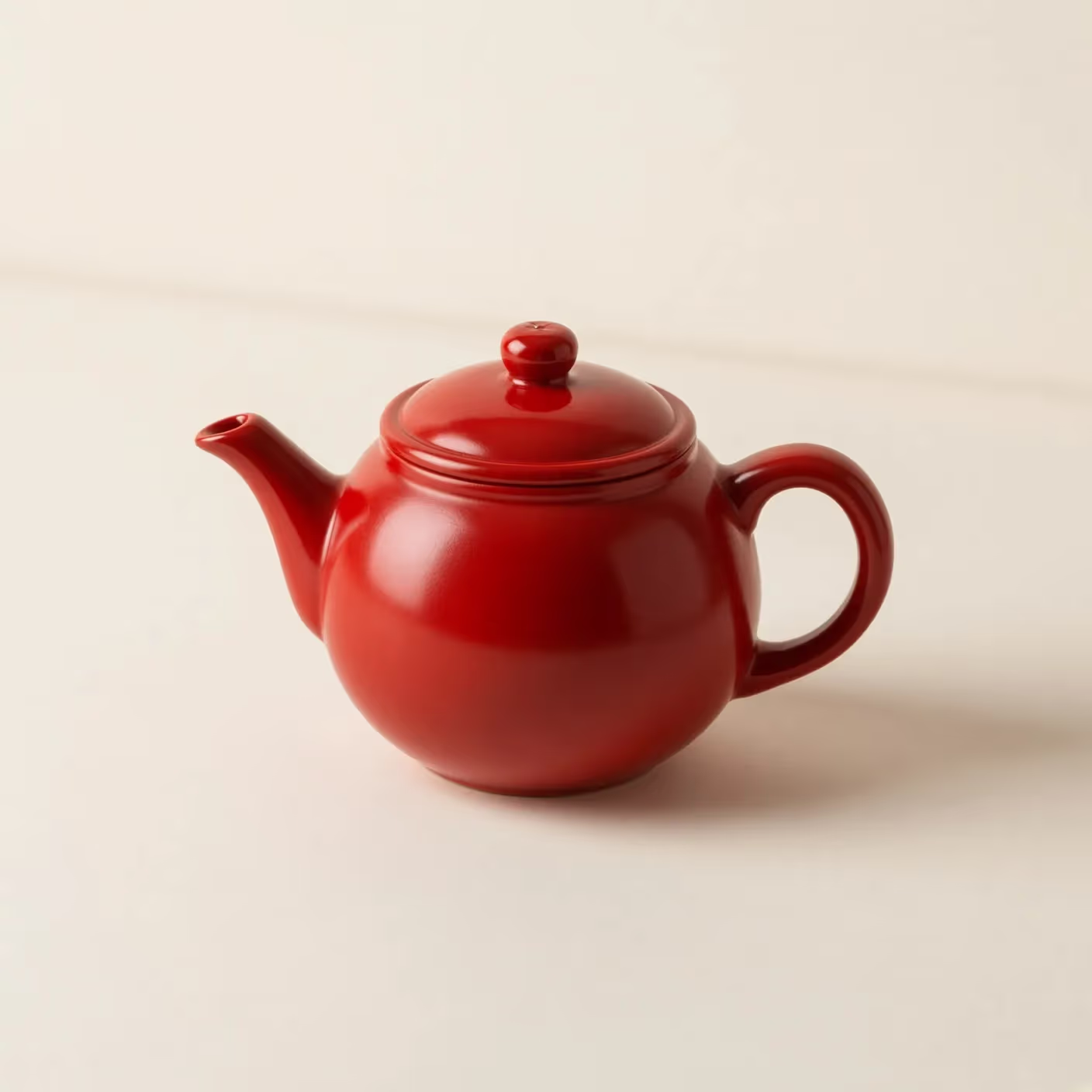
A small red ceramic teapot on a plain cream table, soft daylight, clean studio photograph, no lettering.

Red teapot: an actual generated example

A small red ceramic teapot on a plain cream table, soft daylight, clean studio photograph, no lettering.

Explore a campaign direction before building the finished asset

Use Grok Imagine Image 2.0 on FluxKlein to develop an original visual from a written brief. A useful draft can help a team agree on the focal subject, color relationship, lighting, and space reserved for real campaign copy. Start with the square teapot example to see a simple result, then describe a fictional product or a scene of your own. This is concept development, not an exact product-photography service: a prompt does not lock real packaging, specifications, or a brand identity. Keep those distinctions clear when a draft moves from internal review toward publication.

Three decisions that make a campaign brief actionable

Define what the image must communicate before choosing a decorative style.

One message and one focal subject

Write the purpose in a short sentence: introduce a material, communicate a seasonal mood, or make a product silhouette easy to recognize. Describe the focal subject and its position. Avoid combining an entire product range, several claims, and a complex background in the first concept.

A composition with room for real copy

Specify where a headline or offer will be placed later. For example, keep the right third quiet and place the object toward the left. Review empty space at the final viewing size; a busy background may look attractive but leave nowhere for readable, accessible typography.

A clear boundary between concept and fact

Invented objects are useful for art direction. Real products require a separate check of shape, label, materials, and advertised features. Do not use generated package text as approved copy. A polished image is not evidence that the depicted product exists or performs as shown.

How to create a Grok Image 2.0 campaign draft

Use a repeatable brief-to-review loop instead of changing every instruction at once.

1. Define the placement and visual hierarchy

Choose the intended channel, subject size, and background before generating. Start with the square default if you are testing a general direction. Write the essential composition first, then add the material and lighting. Save a version of the brief so colleagues can understand what the result was intended to achieve.

Back to generator
Square red teapot still life demonstrating a simple Grok Image 2.0 composition

2. Submit one controlled direction

Confirm Grok Imagine Image 2.0 in the selector, review the credit estimate, and generate. For the next attempt, change one variable such as background color or camera distance. Rewriting the whole brief makes it harder to tell which change improved the image and can increase unnecessary iteration.

Back to generator

3. Review against acceptance criteria

Open the output and inspect the object edges, shadows, text-like marks, background clutter, and copy-safe space. Compare it with the brief, not only with the previous thumbnail. Download the selected draft and add exact brand elements in a controlled design workflow after approval.

Back to generator

Campaign-ready prompt structures to adapt

These prompt suggestions describe new concepts, not edits to an uploaded product photo.

Material-led product concept

Prompt: A fictional unbranded brushed-aluminum desk lamp on a pale stone surface, three-quarter view, soft side light revealing the metal finish, quiet warm-gray background, balanced square composition, no lettering. The material and camera direction are specific enough to review without making unsupported product claims.

Seasonal social artwork

Prompt: An unbranded coral-colored ceramic planter with one green leaf, gentle morning shadows, pale peach backdrop, subject in the lower-left half, open space above and right for a headline added later, clean studio photograph. Keep any real price, offer, and legal copy outside the generated image.

Editorial brand mood

Prompt: A folded linen cloth, smooth river stone, and a small clear glass vessel arranged as a calm tabletop still life, muted sand and olive palette, overhead view, diffuse daylight, no logos or text. Use the image to discuss mood and material relationships, not as a representation of a specific catalog item.

Where text-to-image fits a production workflow

A strong concept reduces ambiguity, but it still needs an appropriate finishing process.

Pitch decks and creative alignment

Build a visual reference for a proposed direction before committing to a shoot or a detailed design. Explain what the draft is meant to demonstrate and which details remain undecided. This keeps reviewers from mistaking an early generated concept for approved packaging or final campaign artwork.

Merchandising and category mood

Explore a background palette or arrangement for a product category using clearly fictional, unbranded objects. Review the hierarchy at thumbnail size. When a real SKU must be shown faithfully, use verified product photography or an appropriate reference-editing workflow instead of relying on a text description.

Content series and visual consistency

Reuse a written style brief across a small series: the same lighting direction, palette, material vocabulary, and camera distance. Expect individual generations to vary. Check the series together before delivery, and use normal design tools to standardize margins, logos, typography, and export dimensions.

Choose a model by the input and review task

Compare workflows fairly, without assuming that one image model is best for every deliverable.

New concept versus source-photo editing

The model on this page starts from text. If your brief requires retaining an actual product label or a person's appearance, browse the image model hub for an upload-based option. Exact preservation is a different task from generating a plausible new subject.

Image direction versus video direction

Use a still-image draft to settle composition and mood. Choose Seedance 2.5 or another model from the video hub when you need camera movement, duration, or sound. Do not interpret an attractive still frame as proof that a corresponding motion sequence will remain consistent.

A useful comparison needs a fixed brief

Keep the subject, layout, intended placement, and evaluation criteria the same when trying another model. Compare unwanted details and revision effort as well as visual appeal. One successful sample does not establish universal superiority, a fixed generation time, or guaranteed commercial suitability.

Questions before your design handoff

Check the concept's role, source rights, and finishing requirements before a draft enters the campaign production process.

What can I create with Grok Imagine Image 2.0 here?

Original images from written prompts, such as campaign concepts, illustrated scenes, and fictional product arrangements. Start with a concrete composition and review the result for the intended placement.

Does this page support image editing or Smart Resize?

No. This is a text-to-image workflow. Reference-image editing, segmentation, transparent-background removal, and Smart Resize are not controls on this page. Use a suitable tool from the image model hub for an existing image.

Can I use the generated image as a real product photo?

A generated concept may change dimensions, materials, labels, or features. Compare it with verified product information before any external use. For accurate catalog representation, use appropriate source photography and a review process that protects factual product details.

Is the displayed example made with this model?

Yes. The red teapot image was generated with this model using the displayed prompt. It is a simple square sample. The campaign prompts elsewhere on the page are creative suggestions, not additional verified output examples.

Can I evaluate a basic campaign concept with welcome credits?

Yes. A new account's welcome credits can cover a first basic image, so you can inspect a concept before deciding whether to purchase more credits. Every submission spends credits; compare the estimate with your balance. Free-account results carry a watermark, so confirm the applicable download and plan conditions before preparing a final campaign asset.

How should I handle text and commercial rights?

Proofread any generated lettering and add critical prices, claims, or legal copy in a design tool. Review applicable service terms, trademarks, and likeness permissions. A generated asset does not automatically grant all rights needed for an advertisement.

Which model does the FluxKlein generator use?

This page defaults to Grok Imagine Image 2.0. Verify that exact name in the visible selector before generating. If you choose a different model, its displayed controls and credit estimate describe the workflow that will run.

Build a focused visual brief

Choose one subject, one composition, and one intended placement. Generate a draft, review it, and keep the decisions that work.