


Gemini Omni 1.1 Flash Product Video
Sign In

Gemini Omni 1.1 Flash Product Video

Set one product-shot objective, choose a short duration, and test the motion.

CreditsCost

Gemini Omni Flash 1.1

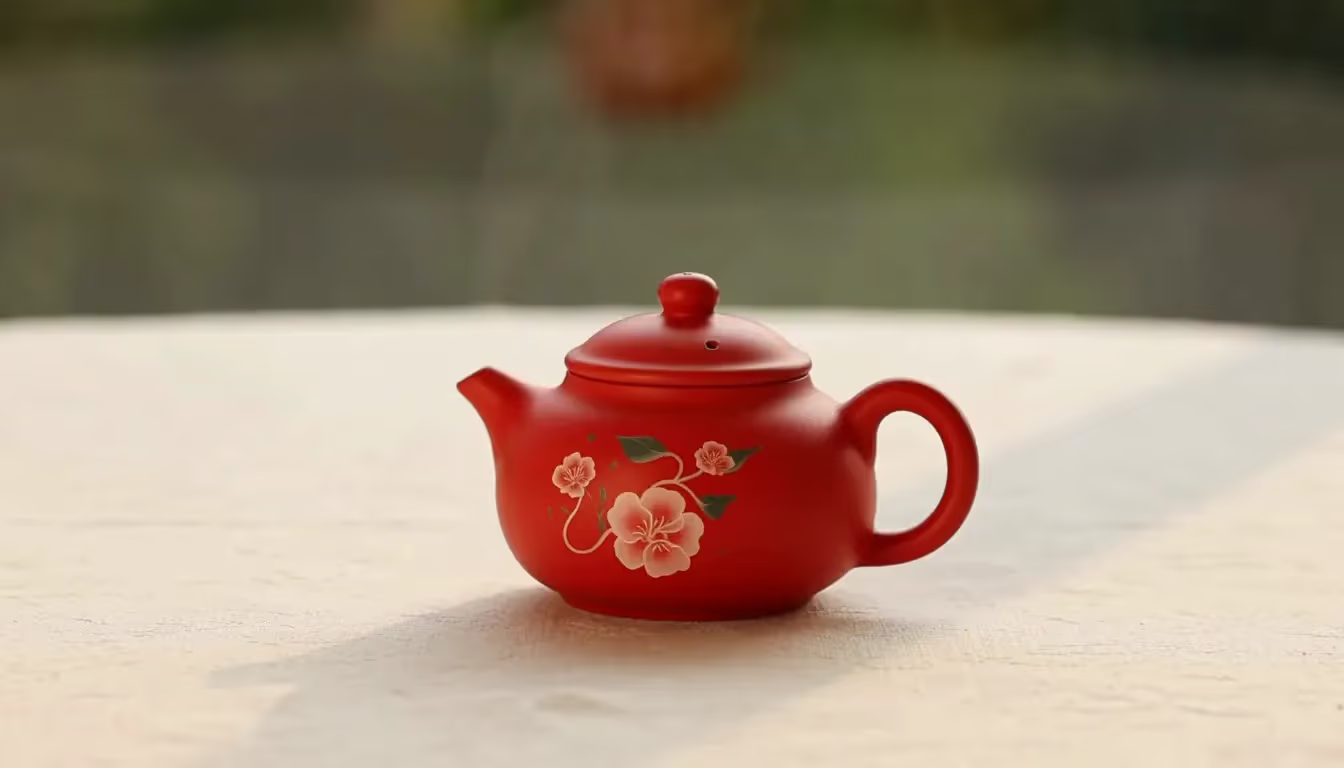
Gemini Omni 1.1 Flash genuine short test · 360p · 4s

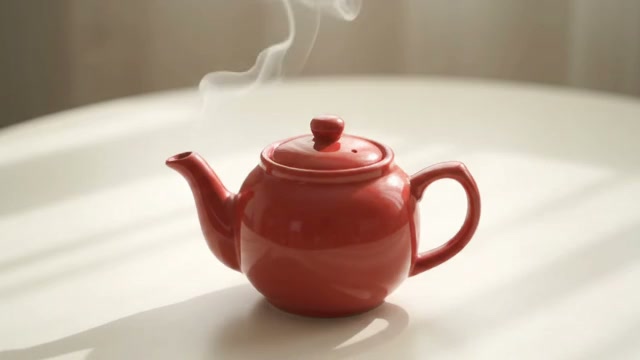
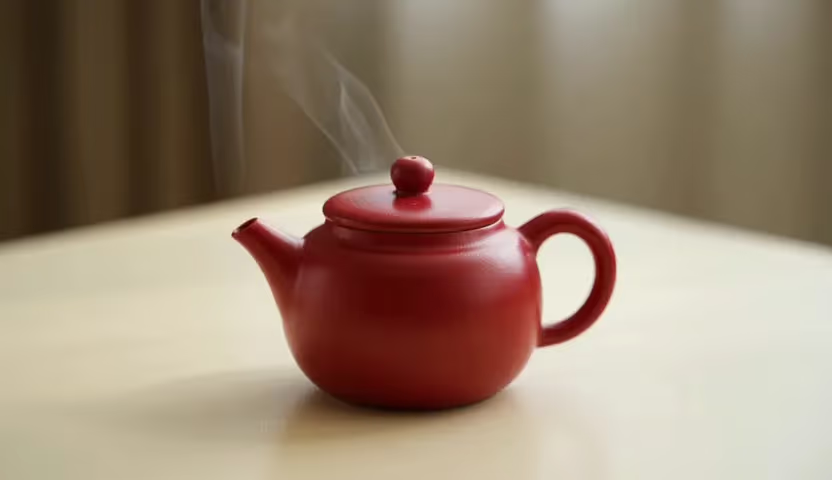
A small red ceramic teapot on a cream table, subtle steam drifting upward, fixed camera, soft daylight, no lettering.

Move from a campaign brief to a reviewable shot

Use Gemini Omni 1.1 Flash on FluxKlein to test one visual decision before committing to a finished campaign asset. Decide whether the product should feel calm, tactile, or energetic, then express that direction through a single action. Keep a record of the prompt and settings so the next review is about the creative change, not a different brief.

Three decisions to settle before approving product motion

Separate the message, the visual reference, and the delivery format so each review has a concrete question.

Define what the product shot must communicate

A campaign clip needs a job: introduce a silhouette, suggest a material, or make a featured object stand out from its surroundings. Text-to-video lets you explore that job before arranging a shoot. Describe the product category and the intended visual emphasis, but do not ask the model to invent evidence for performance claims, certifications, or construction details.

Use approved images as the visual brief

When you have product photography, image-to-video offers a starting composition and optional ending-frame guidance. A separate image-reference workflow can help describe the desired subject or setting. Select pictures with a consistent product variant and believable viewing angles. Mixing different lids, colors, or packaging versions makes it harder to distinguish intentional direction from an invented change in the output.

Match the output to the review stage

The 360p option is useful for discussing movement and layout, while 720p and 1080p let reviewers examine more visible detail. The 4K option produces upscaled output, not proof of native 4K texture. Before choosing it, identify the actual delivery requirement and inspect whether the product remains recognizable throughout the existing draft. Approve the content separately from the file dimensions.

A practical Omni review loop for campaign teams

Keep the brief and comparison notes outside the generator so a second attempt answers the same production question.

1. Write a shot acceptance checklist

List the product attributes that cannot change, the area reserved for later copy, and the desired finishing composition. Decide whether text is sufficient or whether you need an approved image to anchor the shot. Select 16:9 for a landscape placement or 9:16 for portrait, with enough room to keep essential packaging inside the frame.

2. Produce the smallest useful review sample

This page opens at 360p and four seconds. Keep that setup for a simple reveal, replace the sample prompt, and inspect the credit requirement before generating. Durations of six, eight, and ten seconds are also selectable. Choose more time only when you can explain what the added seconds should show, such as a slower approach or a longer hold.

3. Return specific notes to the next draft

Compare the clip against the checklist: Did the cap change shape? Did the reflection hide the feature? Was the final composition usable for the planned layout? Preserve the settings and change only the instruction connected to the failed check. Add approved brand marks, prices, and required disclosures in your editing workflow rather than trusting generated small text.

Write prompts around a production decision

These ungenerated briefing examples isolate lighting and layout decisions; adapt their objects and constraints to your own approved product references.

A controlled product-lighting test

Try: An unbranded frosted bottle on a light stone plinth, a soft reflection moves slowly across the surface, camera locked, neutral studio background, preserve the silhouette, no lettering. Use the result to evaluate lighting direction. Generated packaging details are not evidence of real product specifications; compare important shapes against your approved product photography.

A campaign framing test

Try: A simple canvas tote on a clean bench, a slow camera move reveals the handle and fabric texture, broad negative space on the right, soft morning light, one continuous shot. This is a suggested prompt rather than a displayed result. Keep legal copy, prices, and logos for your layout tool after reviewing the footage.

Where an Omni draft fits into a campaign workflow

Treat the output as review material until product accuracy, placement, and any required editorial work have been checked.

Product mood exploration

Compare a calm reflection with a gentle camera move while keeping the product and background fixed. The goal is a useful direction for review, not an automatic approval-ready advertisement.

Landing-page motion planning

Test a low-distraction shot with clear subject placement. Review its first frame, end frame, and behavior when muted before deciding whether it belongs in a page layout.

Creative handoff references

Share the approved clip with its prompt, intended placement, and remaining corrections. A concrete motion reference helps a designer or editor understand the brief without guessing the camera path.

Choose the next test by the remaining production question

If you need another interpretation of product movement, take the same brief to Kling O3. If supporting references are central to the task, inspect the controls offered by Seedance 2.5 before choosing that workflow. Keep a common acceptance checklist across models: recognizable construction, useful framing, and an ending that fits the edit. A different visual style is not automatically a better fit for the campaign.

Omni product-video planning questions

Where does Gemini Omni 1.1 Flash fit in product production?

This Google model can supply a moving draft from a written brief or supported image inputs. On FluxKlein, use it to explore a reveal, a lighting treatment, or a layout before deciding how to finish the campaign asset. It does not replace checking the real product against the generated depiction.

How should I choose a length and delivery size?

The available lengths are 4, 6, 8, and 10 seconds; output choices are 360p, 720p, 1080p, and 4K. Plan the motion first, then select 16:9 or 9:16 for the intended placement. For an initial review, the four-second 360p default keeps the creative question narrow.

Will selecting 4K make packaging details accurate?

No. The 4K path uses upscaling and should not be described as native 4K generation. A larger output can still contain incorrect lettering, seams, or proportions. Compare critical details with approved photography, and use controlled design or editing tools for information that must be exact.

What should I prepare for a frame-guided product shot?

Prepare a clean opening image and, if the end composition matters, a compatible closing image. Keep the same product version and avoid an impossible change of viewpoint between frames. Frame guidance communicates intent; it does not certify that every intermediate view depicts the actual construction correctly.

Can I upload a finished advertisement for revision?

That is outside this page's workflow. It generates new short clips from text and supported pictures; it does not extend a supplied video, edit existing footage, accept an audio reference, or provide a multi-shot timeline. For an advertisement, assemble reviewed clips and approved graphics in a separate editor.

What evidence does the displayed teapot clip provide?

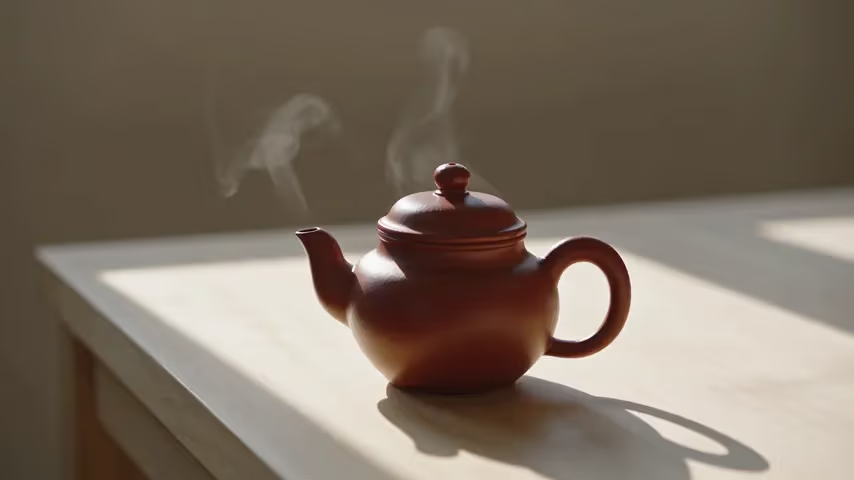
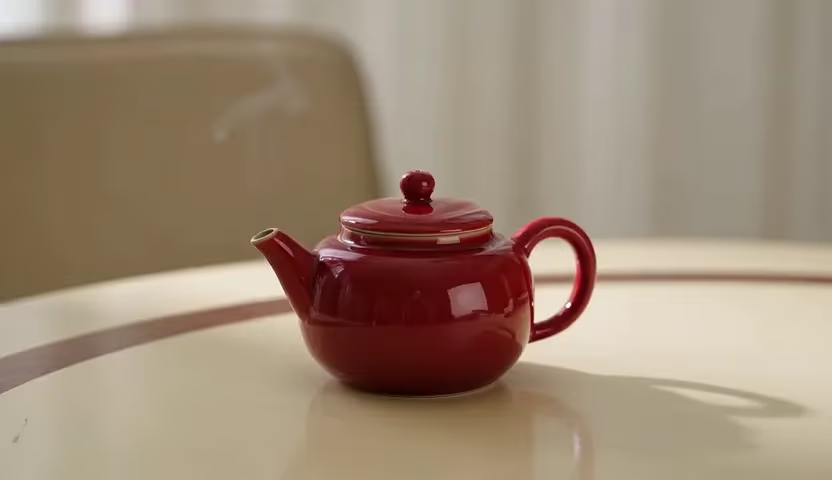
The embedded preview came from an actual Gemini Omni 1.1 Flash text-to-video run requested at 360p for four seconds. Its original brief is preserved beside the media. Use it to understand that simple example, not as evidence that a particular branded product, image-guided transition, or delivery setting has already been tested.

What should I check before spending generation credits?

Check the selected settings and the amount displayed for the request, then make sure the shot answers an unresolved question in your brief. Generation consumes credits. Any welcome balance can help fund eligible attempts, but it is not an unlimited allowance and may not cover the configuration you choose.

How do I confirm which Omni version my request will use?

Look for “Gemini Omni Flash 1.1” in the model selector: that is the default selection for this page. Treat the visible selection as authoritative, particularly after exploring another model. Recheck its scene and settings before submitting instead of inferring the active model solely from the page heading.

Test the motion behind your next campaign

Define one decision, generate a short draft, and keep only the direction that meets the brief.