



Wan 3.0 Video Generator
Sign In

Wan 3.0 Video Generator

Enter a prompt, choose your video settings, and generate a clip.

CreditsCost

Veo 3.1

AI output preview

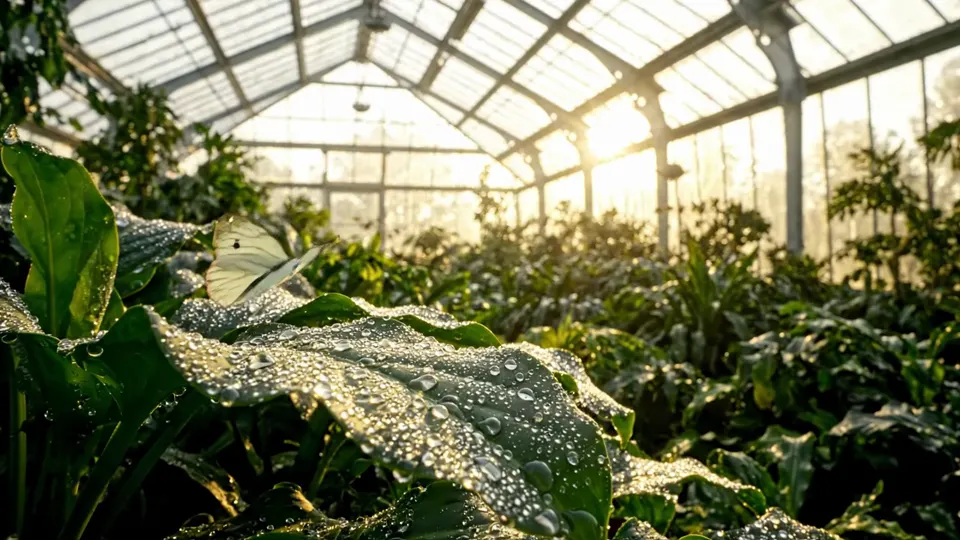
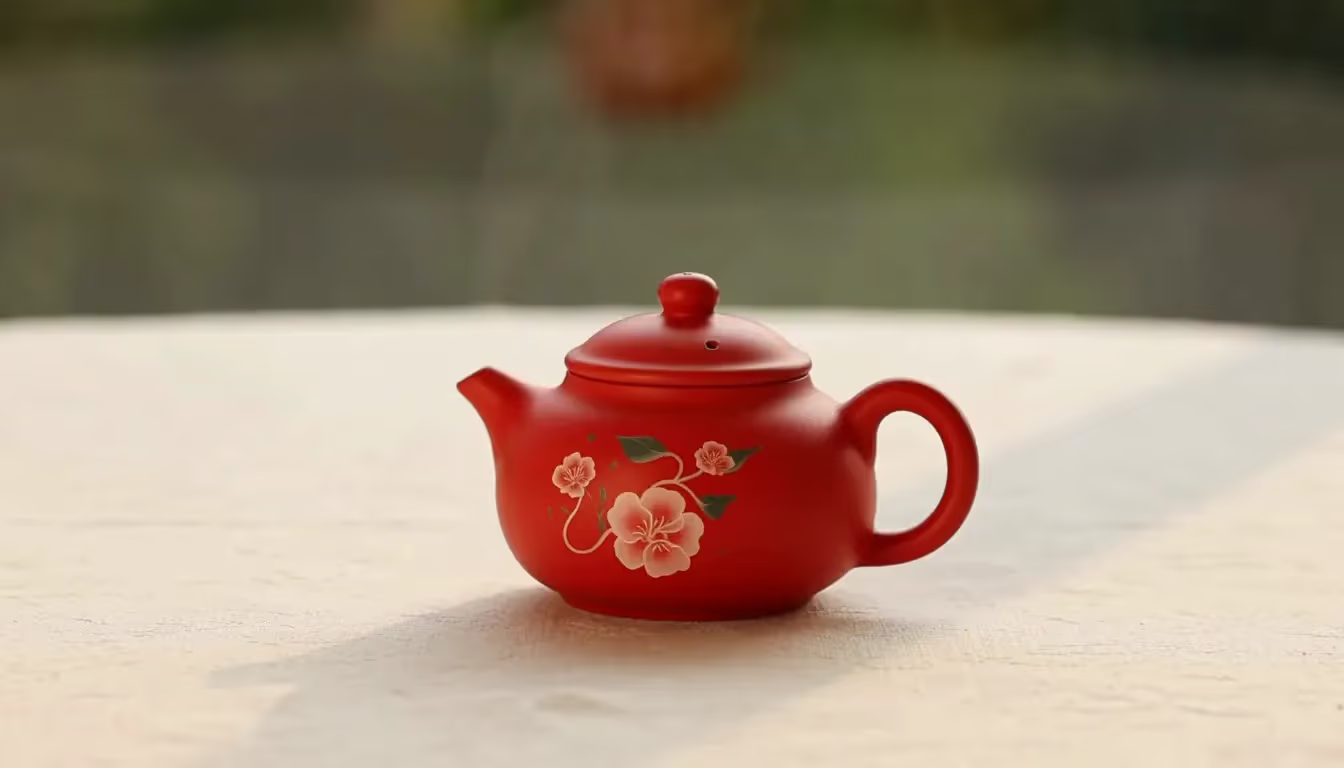
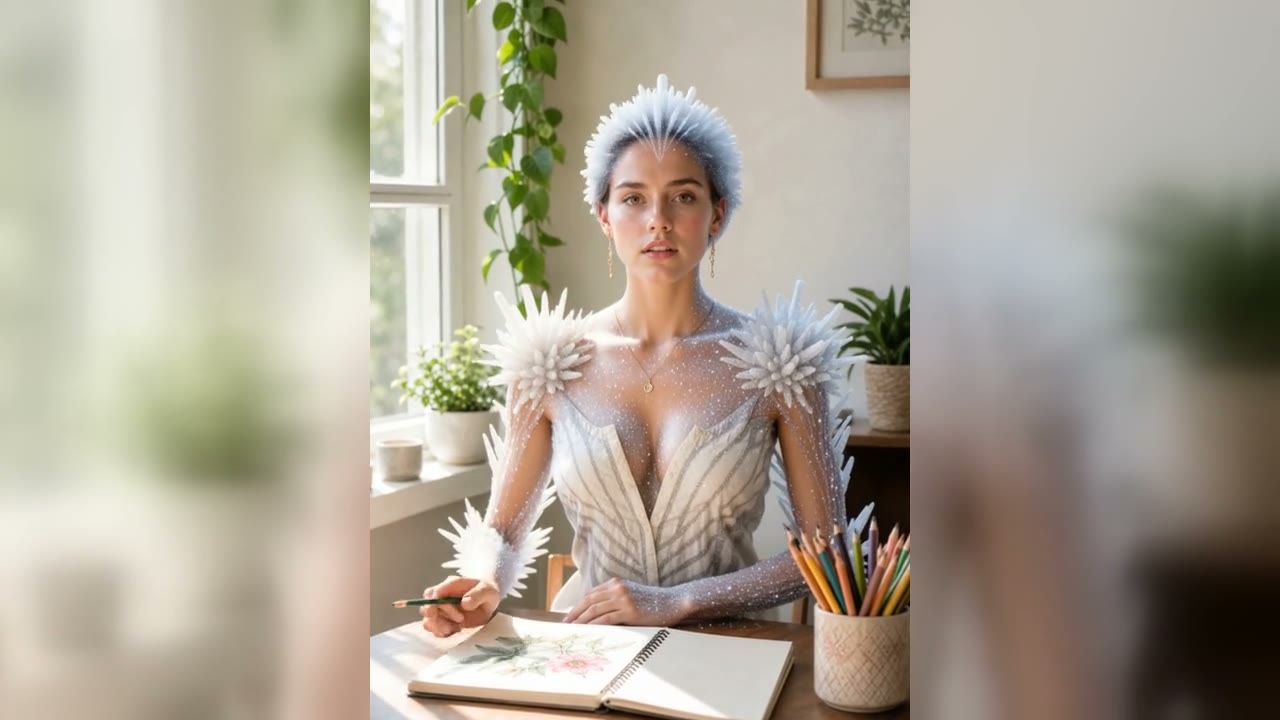
A greenhouse camera move for reviewing motion, framing, and audio.

1/2
Cinematic workflow planning visual for Wan 3.0 Video

Wan 3.0 Video Workflows from Prompt to Multimodal Brief

Wan 3.0 is designed for more than a one-line text prompt. Its documented workflow can begin with text or a first frame, connect first and last frames, or use a mixed reference package containing images, video, audio, documents, and public web pages. This guide turns those capabilities into a practical planning method for product films, explainers, social stories, and cinematic concepts without confusing a workflow reference with the provenance of a generated result.

Wan 3.0 Video Capabilities in the Official Reference

Use the published model contract to plan the right inputs, output tier, duration, and sound direction before submitting a render.

Text, First Frame, and First-to-Last Frame

The official wan3.0-video model accepts a text-only brief, a first-frame image, or both first and last frames. Text-to-video is useful when the whole shot can be described in language. A first frame anchors subject appearance, composition, color, and camera position. First-and-last-frame guidance adds a defined destination, which is useful for reveals, transformations, product rotations, or scenes that must finish on a deliberate composition. In every mode, describe the motion between states instead of treating the prompt as a still-image caption.

All-in-One Reference Inputs

Reference-based generation can combine several kinds of context. The documented limits allow up to 10 images, 5 video references, and 5 audio references, with the combined reference-video duration and combined reference-audio duration each capped at 15 seconds. Assign a job to every source: one image for identity, another for environment, one clip for camera rhythm, and one audio file for cadence. A smaller, clearly labeled reference set is usually easier to direct than a folder of conflicting material.

Documents and Public Web Pages as Creative Context

The media input can include common documents, spreadsheets, presentations, PDFs, text files, Markdown, and supported Apple productivity files. It can also ingest a public web page that does not require login. That makes the workflow relevant to an all-in-one brief assembled from a product document, campaign deck, script outline, brand page, or research note. Source material still needs editorial judgment: highlight the key message, audience, required facts, and desired scene rather than expecting a long document to choose the story for you.

How to Plan a Wan 3.0 Video Generator Workflow

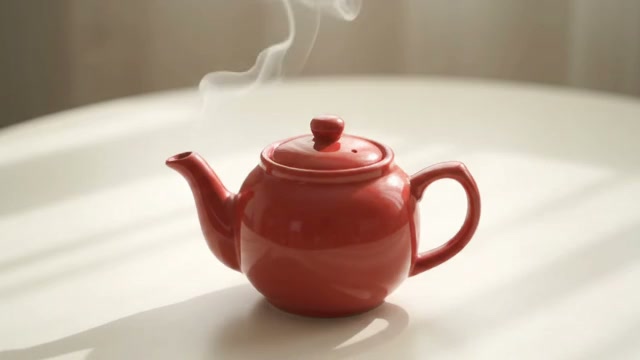
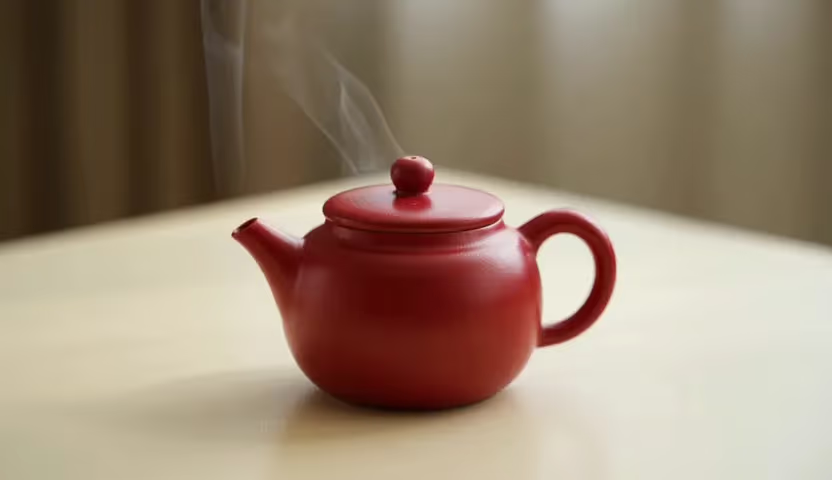
Move from one measurable shot idea to a controlled reference package, duration plan, render, and review. The clips below provide visual context for each review step.

1. Define One Shot and Its Ending State

Write the subject, action, environment, shot size, camera movement, lighting, pace, and ending state in that order. Make time visible: say that a door opens as the camera moves closer, that fabric settles after a turn, or that a product rotates and stops with its label facing forward. Avoid asking one short shot to change locations, introduce several characters, transform the art style, and deliver a full story at once. A focused temporal brief is easier to evaluate for prompt adherence and physical continuity.

Draft a Shot

2. Choose Image-to-Video or a Reference Package

Use a clean first frame when visual identity and composition matter more than open-ended invention. Add a last frame when the result must reach a particular pose or layout. For an all-in-one reference workflow, keep each source purposeful and note what it controls: subject identity, wardrobe, product geometry, palette, lens language, motion rhythm, dialogue cadence, or ambient sound. Remove duplicates and contradictions before submission, and do not assume that adding more files automatically improves control.

3. Set Resolution, Duration, and Audio Deliberately

The official contract lists 480P, 720P, and 1080P outputs. Without a video input, duration can be set from 2 to 30 seconds; smart duration uses -1. When a video reference is supplied, its duration plus the requested output must stay within 30 seconds. Audio is enabled by default in that contract. Choose duration from the action rather than automatically requesting the maximum: a two-beat product reveal may need only a few seconds, while dialogue, a process, or a camera journey needs more breathing room.

4. Review Motion, Continuity, Sound, and Claims

Open the rendered file and watch it from beginning to end with sound on, then review it once without sound. Check subject identity, object count, anatomy, contact with surfaces, camera direction, visual continuity, spoken words, sound-event timing, and the final frame. Compare the result with the exact selected model and task record before labeling or publishing it. Save the prompt, references, settings, cost, and output together so later iterations have a reliable baseline.

Review the Workspace

Wan 3.0 Video Prompt and Reference Patterns

Start with these structures, then replace the subject, motion, reference role, and finishing state with details from your own production brief.

Text-to-Video Scene Pattern

“Medium-wide shot of a ceramic artist lifting a finished blue bowl from the wheel in a bright workshop; the camera makes a slow clockwise arc while dust catches the side light; natural hand movement, stable bowl shape, quiet room tone; end with the bowl centered at chest height.” This pattern gives the shot a subject, readable action, camera path, physical constraints, atmosphere, and final composition. Replace decorative adjectives with concrete events that can unfold on screen.

Wan 3.0 Image-to-Video Pattern

“Preserve the uploaded bicycle frame, logo placement, wheel geometry, street composition, and sunset palette. Introduce a light breeze in the rider's jacket and roadside grass as the camera tracks alongside at a constant distance. Keep traffic moving in the same direction and finish on the original three-quarter framing.” State what the image locks before describing new motion, and keep camera movement compatible with the source perspective.

Document or Web-Page Brief Pattern

Identify the source, audience, one message, required factual details, and desired format before asking for a scene. For example: “Use the attached launch brief as context. Create one 12-second product introduction for first-time buyers. Show the three-step folding mechanism in order, preserve the documented material and color, avoid unsupported performance claims, and end on a clean product silhouette with restrained mechanical sound.” Always fact-check the resulting script and visuals against the source.

Wan 3.0 Video Generator Use Cases

Match the input mode to the part of the story that must remain controlled.

Product Demonstrations and Campaign Films

Start from approved product imagery or a documented brief when geometry, materials, colors, and feature order must stay accurate. Use a first frame for a recognizable setup, a last frame for the closing product composition, and reference motion for camera rhythm. Keep each clip focused on one benefit or action. Review labels, mechanisms, proportions, and marketing claims before a result enters an advertisement or product page.

Character, Dialogue, and Social Storytelling

Combine a clean identity reference with concise performance direction, camera framing, spoken language, delivery, and ambience. Keep dialogue short enough for the chosen duration and make audio events correspond to visible actions. For a series, reuse a continuity block covering character appearance, wardrobe, location, palette, and screen direction. Generate separate landscape and portrait plans when the distribution format changes the composition.

Explainers from Documents and Research

Turn a presentation, report, public page, or Markdown outline into a compact visual brief. Select one argument for each clip, list the facts that must appear, and define whether the scene should demonstrate, compare, summarize, or establish context. Documents provide information, not automatic editorial accuracy, so verify names, numbers, captions, and implied conclusions before publishing the video.

Credits, Cost, and Watermark Expectations

Treat the selected model, visible settings, displayed price, and completed task record as the authoritative details for every submission.

40 Welcome Credits for Eligible New Accounts

Eligible new accounts receive 40 welcome credits that expire after 5 days. Eligibility is subject to the site's anti-abuse controls. The grant is a limited starting balance, not an unlimited plan, and generation still requires sign-in.

The 720p Baseline Costs 150 Credits

The generator opens on its lowest-cost video baseline: text-to-video, 16:9, and 720p, priced at 150 site credits. Because 150 is greater than the 40-credit welcome grant, a new-account balance alone cannot fund that request. Review the live cost before submitting because a different resolution, route, or configuration can cost more.

No FluxKlein Video Watermark Overlay

FluxKlein does not add a visible site watermark to video results. The downloaded file and the provider's applicable output policy remain the source of truth.

Wan 3.0 Video Generator FAQ

Answers about inputs, image-to-video, reference limits, duration, output resolution, audio, credits, and the exact model selected in the workspace.

What is Wan 3.0 Video?

Wan 3.0 Video is Alibaba Cloud Model Studio's multimodal video generation model identified in the official API reference as wan3.0-video. Its documented workflows include text-to-video, first-frame image-to-video, first-and-last-frame guidance, and reference-based generation using several media types. The model can plan picture and native audio together and offers output tiers up to 1080P.

Does Wan 3.0 support image-to-video?

Yes. A first-frame image can establish the initial subject, composition, and art direction, while a first-and-last-frame workflow can define both the opening and destination states. A useful prompt says which source details must remain stable and describes the motion, camera behavior, timing, and final state that should be introduced between frames.

What can I include in an all-in-one reference brief?

The official media input supports images, video, audio, documents, and public web pages. Its reference limits include up to 10 images, 5 videos, and 5 audio files, with total reference-video duration and total reference-audio duration each limited to 15 seconds. Give every reference a clear role and remove contradictory sources before generation.

Can Wan 3.0 use a document or website as input?

Yes. The API reference lists common document, spreadsheet, presentation, PDF, text, Markdown, and Apple productivity formats. It also supports public web pages that do not require login. Use these sources as creative context, then identify the audience, required facts, main message, and intended scene so the output does not have to infer the whole editorial brief.

How long can a Wan 3.0 video be?

Without a video input, the documented duration range is 2 to 30 seconds, and smart-duration mode is available. If a video reference is included, the input video duration plus output duration must be no more than 30 seconds. Choose a duration that matches the number of actions and spoken words instead of automatically using the maximum.

Which resolutions and audio options are documented?

The official contract lists 480P, 720P, and 1080P output. Audio generation is enabled by default in that contract. Plan dialogue, ambience, music direction, and sound events as part of the same timed scene, then verify the finished file with sound on because lip movement, timing, and environmental audio still require review.

Is the Wan 3.0 Video Generator free to use?

The page and planning guide are free to open, but submitting a video requires sign-in and credits. Eligible new accounts receive 40 welcome credits valid for 5 days, while the selected 720p baseline costs 150 credits, so the welcome balance alone is insufficient for one video. This is limited credit access, not unlimited free generation.

Which model does this page's generator use right now?

The visible selector currently defaults to Veo 3.1 through FluxKlein's existing Kie route. FluxKlein has not connected or verified a Wan 3.0 generation route on this page. A task submitted now is a Kie Veo 3.1 task, and its result must be described as Veo 3.1 output, never as Wan 3.0 output. The selected model will only change after the exact Wan 3.0 API, pricing, and a real provider task are verified.

Turn a Wan 3.0 Video Brief into a Testable Shot

Start with one action, choose purposeful references, set a realistic duration and output tier, then preserve the task settings and result for a fair review.