Veo Omni Camera Lab
Sign In

Veo Omni Camera Prompt Lab

Write one scene and compare two camera directions. This free browser tool creates text briefs, not videos.

Change only the camera
Shared scene, sound and continuity
Start from an example

Examples and Reset replace all current fields.

Your A/B camera briefs

The same scene, two camera directions. No generation request is sent.

Ready to copy — camera is the only changed field.

Variant A

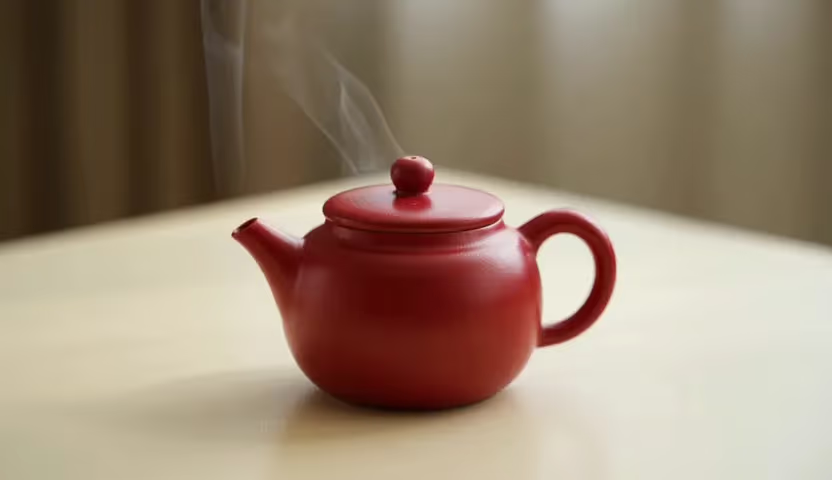
Subject: An unbranded matte ceramic mug with a curved handle.

One visible action: A single ribbon of steam rises from the mug; the mug stays still.

Scene and background: A plain oak table against a soft gray wall.

Lighting: Soft window light from the left; stable exposure.

Sound direction: Quiet room tone, no dialogue or music.

Keep unchanged: Same mug silhouette, handle opening, table grain and light direction.

Exclude: No new text, logos, duplicate cups, cuts or handheld shake.

Planned aspect ratio: 16:9

Camera direction: Locked medium close-up at table height.

Variant B

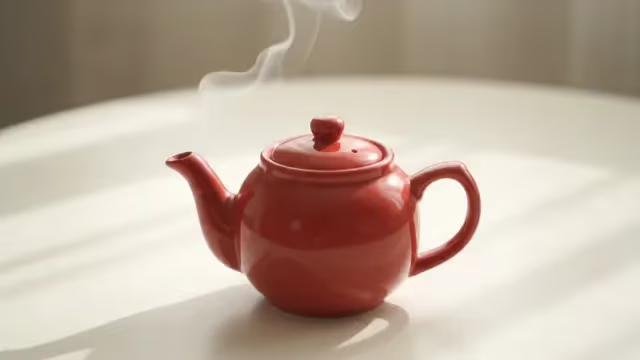
Subject: An unbranded matte ceramic mug with a curved handle.

One visible action: A single ribbon of steam rises from the mug; the mug stays still.

Scene and background: A plain oak table against a soft gray wall.

Lighting: Soft window light from the left; stable exposure.

Sound direction: Quiet room tone, no dialogue or music.

Keep unchanged: Same mug silhouette, handle opening, table grain and light direction.

Exclude: No new text, logos, duplicate cups, cuts or handheld shake.

Planned aspect ratio: 16:9

Camera direction: Slow straight push-in from the same starting composition; do not orbit.

Aspect ratio and motion are creative targets, not guaranteed model controls. Save your text before leaving; this tool does not store it.

Open the separate Veo 3.1 video generator

Build a controlled camera comparison

Anchor the scene

Name one subject and one visible action before writing a camera move. A stationary mug with rising steam is easier to evaluate than a busy kitchen. Keep location, light direction, sound and exclusions in the shared fields so neither version silently changes the scene.

Change one direction

Use A for a simple baseline, such as a locked shot. Give B one deliberate movement: push in, track sideways or tilt upward. Specify the starting composition and stopping point. Avoid combining zoom, orbit, focus pull and subject motion in the same test.

Review the full clip

Copy each brief into a compatible video tool and use matching available settings. Compare the opening, middle and ending, not just a thumbnail. Check whether the subject remains stable while perspective changes. A text-only brief cannot enforce identical random output.

What to inspect in the two results

Framing and screen direction

Watch for a cropped subject, a reversed travel direction or an unintended cut. In a tracking shot, the camera should follow the subject rather than stretch the background. For a reveal, make the final composition specific enough that the movement has a clear destination.

Geometry and continuity

Inspect handle openings, repeated structures, reflections and small edges as the camera moves. A visually appealing take can still change the object. Keep a reference you have permission to use and compare it manually; this planner neither uploads it nor guarantees preservation.

Sound and repeated trials

Keep the sound brief unchanged when comparing camera work. Note unwanted speech or sound effects, and separate those issues from framing. One pair is not a benchmark: repeat with matched settings when needed, then record the strongest direction and its remaining defects.

Veo Omni camera planning questions

Does the lab generate or upload video?

No. Editing and copying produce only local text. The separate Veo 3.1 link opens another tool; that tool has its own model selector, settings and sign-in requirements.

What changes between A and B?

Only the camera direction. Subject, action, scene, light, sound, continuity, exclusions and aspect ratio are shared. Changing a shared field updates both briefs immediately.

Can I compare subject actions instead?

This page intentionally isolates camera direction. Save the first pair before changing the action, then build a second pair. Mixing multiple changed variables makes it harder to explain a difference in the resulting clips.

Will copying both briefs generate two videos?

No. Copying has no generation effect. Paste A and B into separate requests in your chosen tool; pasting both together may be interpreted as one combined instruction.

Are my inputs saved?

The planner keeps edits in the current page only. Copy them before reloading, changing language or leaving. No reference-file upload or server-side brief storage is used.

Is Veo Omni the model used on this page?

This is an independent Flux Klein AI planning tool, not a connected model. Google documents Veo and Gemini Omni as separate video options. The linked generator is labeled Veo 3.1; check its visible model selector before any generation.

Google: video generation models and workflows