




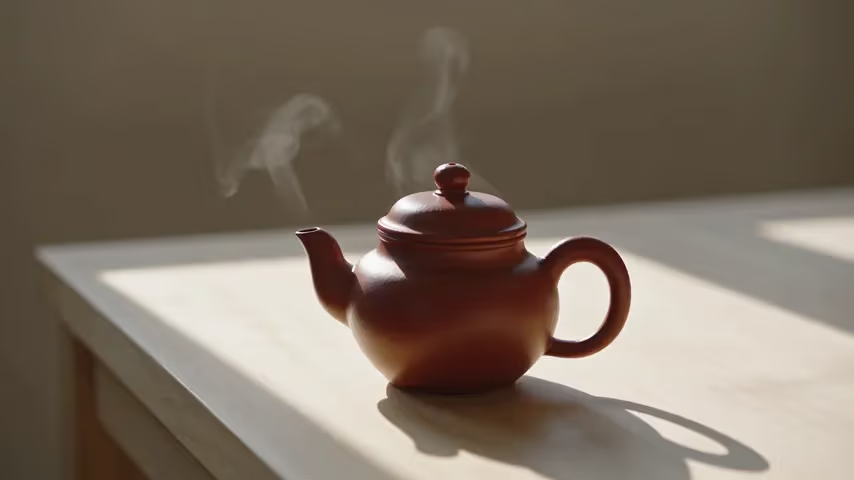

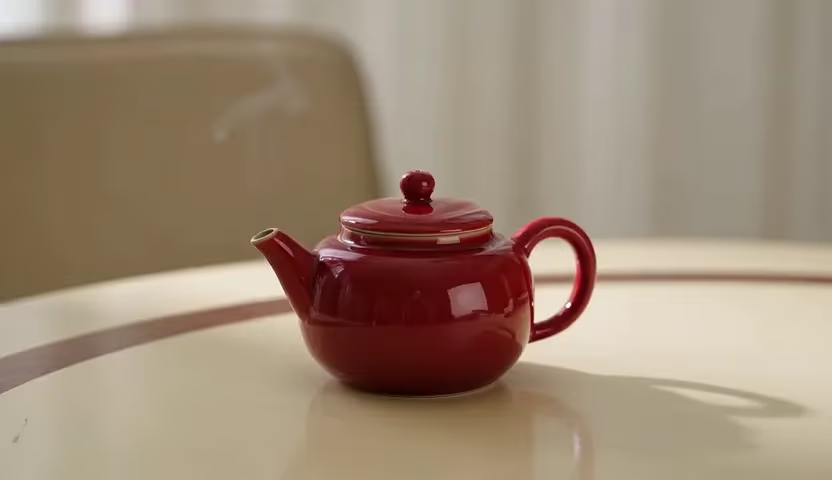

Text versus source image
Run the same action from a prompt and from a clean starting frame. Compare composition stability, subject retention, and freedom of motion.
Save up to 73% on plans
Grok Imagine 1080P
AI output preview
Browse every other AI video model and effect published on this site in a continuous carousel.
Flux Klein AI starts with the lowest supported UI configuration: 1080p, six seconds, Normal mode, and one simple action. After that baseline, you can compare a source image or Quality mode without losing sight of which extra input or credit changed the result.
Separate input effects from quality-mode effects.
Run the same action from a prompt and from a clean starting frame. Compare composition stability, subject retention, and freedom of motion.
Keep the prompt, ratio, and duration fixed when comparing modes. Decide whether the quality pass creates a material improvement for its additional credits.
Review all six seconds for geometry, motion cadence, camera drift, and final-frame integrity instead of judging from a poster frame.
Run the inexpensive comparison before the premium pass.
Use one object, one repeated or directional motion, a fixed or simple camera, and an uncluttered setting so failure is easy to identify.
Select six seconds and Normal mode. Record credit cost, task status, and the exact output before changing any input.
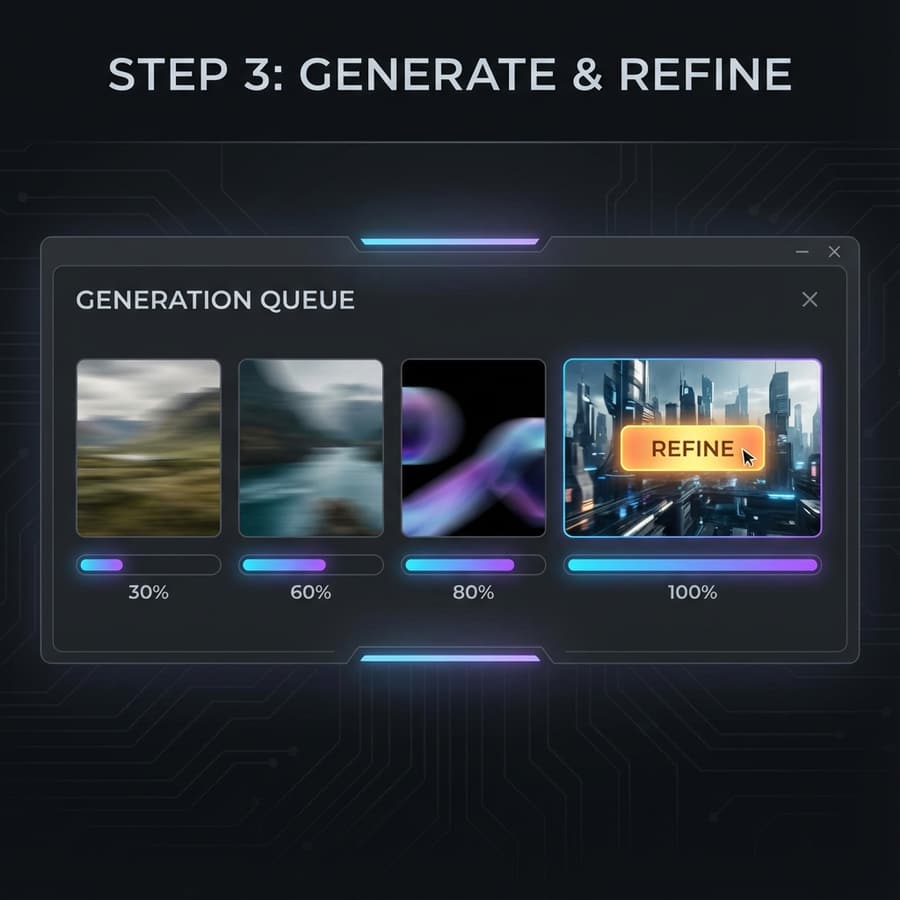
Choose either an image-anchored run or a matched Quality run based on the baseline's weakest point. Stop when the experiment no longer answers a new question.
Begin with a six-second question that has a visible pass or fail condition.
Place one object in a clean setting and request one repeated, directional, or mechanical action with a fixed camera. This exposes cadence, contact, shape retention, and background stability without narrative noise. Use Normal mode for the first run and write down the exact failure before deciding whether a source image or Quality mode can address it.
Describe the same action once from text and once from a licensed source frame. Keep ratio, duration, and mode fixed. Compare how much composition freedom text provides against the identity and layout stability of image-to-video. The test is informative only when the source image is clean and the motion request is compatible with its geometry.
Promote a promising Normal result into a matched Quality test without rewriting the prompt. Define the expected improvement first, such as cleaner edges, steadier geometry, or more coherent motion. Compare the complete clips at normal speed and frame by frame, then decide whether the improvement is material enough to justify the additional credit cost.
A playable file is the start of evaluation, not the end.
Watch for acceleration jumps, frozen intervals, direction changes, camera drift, and movements that do not match the prompt. Scrub the full six seconds to find single-frame failures hidden at playback speed. Record the first frame where geometry or identity breaks so the next test targets a specific cause.
Compare subject scale, proportions, texture, background layout, shadows, and final-frame integrity. An attractive opening does not compensate for disappearing parts or an unrelated ending. For image-to-video, also compare the source with early generated frames to determine how quickly the visual anchor begins to drift.
Keep the lowest supported Normal configuration as the default benchmark. Spend on Quality only when the baseline is directionally useful and the expected improvement can be named. Before publishing, verify source rights, people, products, logos, safety, and destination framing, and use the separate image page for still-image work.
Route and cost-comparison guidance.
The validated baseline uses 1080p, six seconds, Normal mode, and a supported aspect ratio.
Yes. A lowest-spec UI submission created a KIE task, completed successfully, charged credits, and returned a playable video.
Only after a Normal result shows a promising direction and you can define the improvement that would justify the extra credits.
Yes. The linked image page exposes its separate text-to-image and image-to-image routes.
Begin with Normal mode, capture evidence, and spend on the next run only when it tests a new hypothesis.