








Kling O3 Product Video Generator
Sign In

Kling O3 Product Video Generator

Choose a product or campaign shot, define one movement, and test a short clip.

CreditsCost

Kling O3

Kling O3 genuine short test · 720p · 3s · audio off

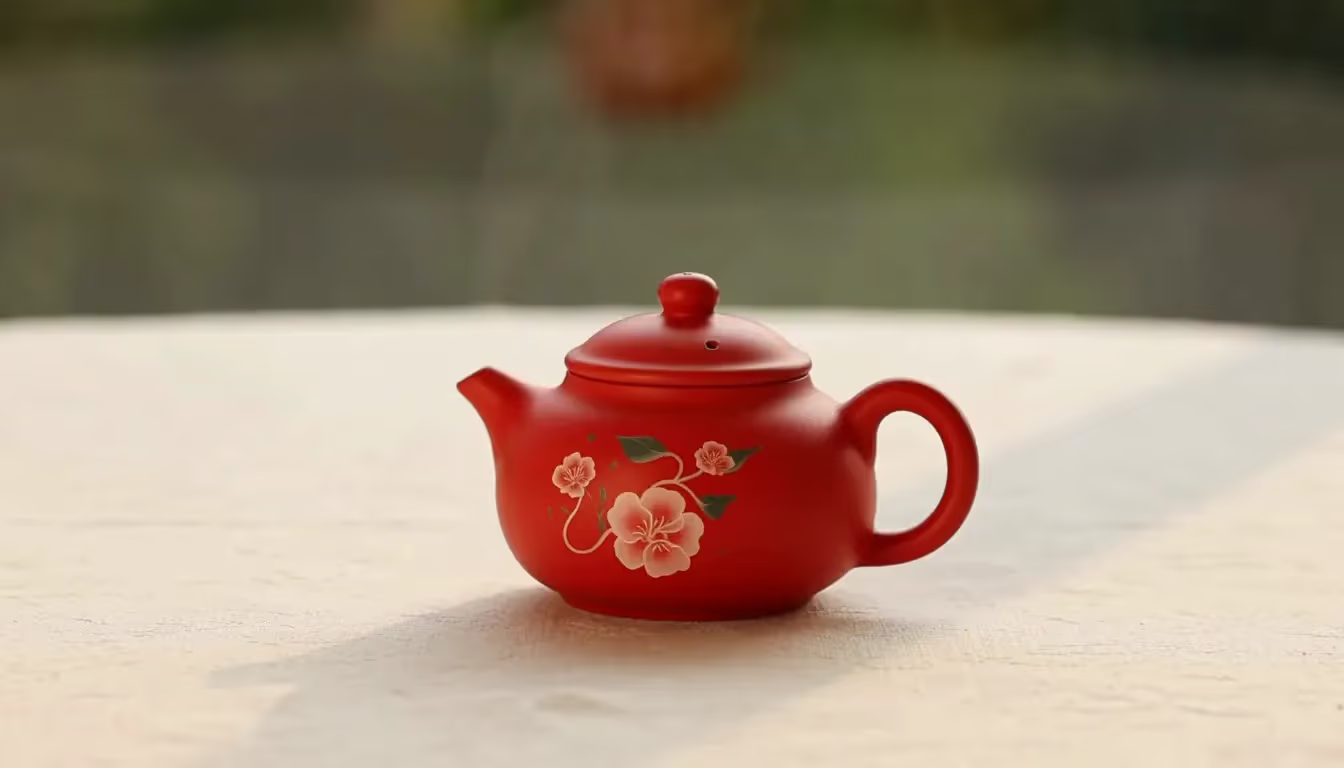
A small red ceramic teapot on a cream table, subtle steam drifting upward, fixed camera, soft daylight, no lettering.

Evaluate a product shot before building the full campaign

Kling O3 on FluxKlein helps turn a product-image brief into a piece of motion that can be reviewed. Define the shot's job first: reveal a surface, establish a mood, or lead attention toward a detail. Keep important product facts outside the generative task, and evaluate the delivered clip against your approved reference instead of relying on a polished first impression.

Build a product shot that a reviewer can evaluate

Tie every motion instruction to a visible product attribute, a planned edit point, or an audio decision.

Show one attribute instead of staging an entire advertisement

A material reveal, a small change in viewpoint, or a restrained movement can support a focused campaign insert. Text-to-video is useful for exploring the treatment before a final product image exists. When the depiction must represent a real item, judge shape and behavior against the product brief; attractive movement is not a substitute for factual accuracy.

Plan image guidance around the final composition

Use an opening product image when its framing matters, and an optional ending image when the editor needs a specific finishing view. Check that both show a compatible item, surface, and lighting setup. In image-to-video, the framing follows the image-based control. Evaluate whether the transition introduces a new seam, moving label, extra handle, or other incorrect feature.

Separate visual approval from sound approval

The audio switch can request a soundtrack along with the generated picture, but it starts disabled here. A team planning a muted placement can assess the image without adding a sound requirement. When audio is relevant, describe the intended event and later check its timing, unexpected dialogue, and relationship to the visible product action. Sound needs its own review, not just a checked box.

Take a Kling O3 product draft through three review passes

Define what counts as an acceptable result before generating, then keep a clear record of the changes between attempts.

1. Identify the product facts and the allowed movement

Write a short list of fixed details such as the cap shape, number of handles, material, or label placement. Pick one action that will not obscure those details. With image guidance, use a photograph you are entitled to upload; avoid mixing reference views from different product variants. Specify where the clip should leave room for later graphics.

2. Check the shot at 720p for three seconds

The initial setup uses a 3-second landscape clip with audio off. Inspect the request's credit amount before starting. You can select durations from 3 through 15 seconds and output at 720p, 1080p, or 4K. In text mode, choose 16:9, 9:16, or 1:1 to match the placement before judging the product's screen position.

3. Approve geometry, pacing, and the handoff separately

First compare the product's visible construction with your reference. Next, check that the movement completes without an abrupt change or unusable end frame. Finally, inspect any requested audio and note which branding elements need to be added in the editor. Change the failing part of the brief while holding the rest steady, so reviewers can attribute the difference.

Product prompts with a clear review question

Use these ungenerated product briefs to test a material reveal or a small physical action, not as claims about demonstrated results.

A surface-detail reveal

Try: An unbranded leather pouch on a neutral tabletop, the camera moves slightly closer to reveal the grain, soft side lighting, stable zipper and stitching, no lettering. Review whether the texture remains plausible across the clip. If a real product must be represented, compare its construction and proportions against the source image before any public use.

A single-action campaign insert

Try: A plain paper gift box with a loose ribbon, one ribbon end lifts gently in a breeze and settles, fixed camera, warm studio light, empty background. This is a suggested brief, not a displayed output. It isolates one movement so feedback can be specific: motion too large, timing too quick, or shape not stable enough.

Use O3 for focused production questions

A useful draft should answer a production question before it becomes part of a public campaign.

Product presentation variants

Compare a stationary camera with a small push-in while holding lighting and composition steady. Keep the version that communicates the intended product detail without introducing misleading changes.

Short campaign inserts

Create a single visual beat to sit beside approved photography and edited graphics. Leave text, disclaimers, and precise branding to controlled design tools.

Reviewable image-to-motion briefs

Use first and last frames to explain a desired transition to collaborators. Record where the generated result differs from the brief so approval notes translate into the next iteration.

Compare model outputs against the same product checklist

Bring the approved source image and shot objective to Gemini Omni 1.1 Flash when you want a second interpretation. Review Seedance 2.5 if its reference controls fit the material you have. Keep the comparison grounded in recognizable construction, a readable action, and suitable edit points. The model hub is a starting place to inspect options, not evidence that every model has the same inputs or controls.

Kling O3 questions for product-video review

Why use Kling O3 for a campaign insert?

Kling O3 belongs to Kuaishou's Video 3.0 Omni family. Here it can create a new short video from written direction or supported images. A practical use is testing how a product detail should be revealed before an editor combines the approved clip with photography, graphic design, and campaign copy.

Should my team treat O3 and Kling 3.0 as interchangeable?

No. They are separate model selections, so a brief written for one may need different controls on the other. If both are candidates for the job, record which one produced each clip and compare them against the same acceptance criteria. Do not reuse a settings checklist without looking at the active model.

Which settings suit a short product placement?

The duration selector covers 3–15 seconds, with 720p, 1080p, and 4K output choices. Text-led shots can use 16:9, 9:16, or 1:1, whereas image-led framing follows the image control. Begin with the three-second 720p default for a small movement, and expand only when the placement requires it.

How can the closing product view be directed?

Provide a compatible ending frame alongside the starting image in image-to-video. This communicates the view you want the shot to approach, but it does not lock every intermediate detail. Review whether the product stays structurally correct and whether the closing frames give the editor a useful place to cut.

When is it worth turning on audio?

Enable audio when the intended placement needs a sound event that belongs to the product action, and make that event explicit in the brief. Leave it off when you only need to judge composition or motion. Review any generated track for unintended speech and timing errors; this control does not upload an approved soundtrack or reproduce a specified person's voice.

Can the generator revise our existing commercial?

It is not an existing-footage editor. This page creates new single-shot material from text or supported images; it does not expose video editing, a multi-shot timeline, custom character references, or voice references. Keep the original advertisement in your editor and insert only new clips that pass your team's checks.

Has the visible sample been tested with a real request?

Yes. The teapot media is a genuine Kling O3 text-to-video output from a request set to 720p, three seconds, and audio disabled. The accompanying prompt records that test. It confirms this example, not the behavior of your specific product or of an untested image-guided or sound-enabled configuration.

How can a team keep exploratory attempts controlled?

Assign each attempt one question and inspect the displayed credits before submitting. Duration, output choice, and audio selection affect the requirement. Generation uses credits even when the request is exploratory; welcome credits are a limited starting balance, not unlimited production capacity. Review the first result before authorizing another variant.

Where should I verify the model before submitting a product brief?

The model selector should show “Kling O3” for this page's default workflow. That visible field, rather than a saved page title or an earlier preview, determines the selection to check. If you have switched models, review the active scene and available settings again before creating the task.

Turn one product brief into a motion test

Begin with a short silent clip, review it against your reference, and refine one variable at a time.