

Free FLUX 3 AI Image Generator & Editor
Sign In

Free FLUX 3 AI Image Generator & Editor

Open free, then sign in to generate with limited free or paid credits. The selected model, scene, and displayed cost are the source of truth.

CreditsCost

Flux 2 Flex

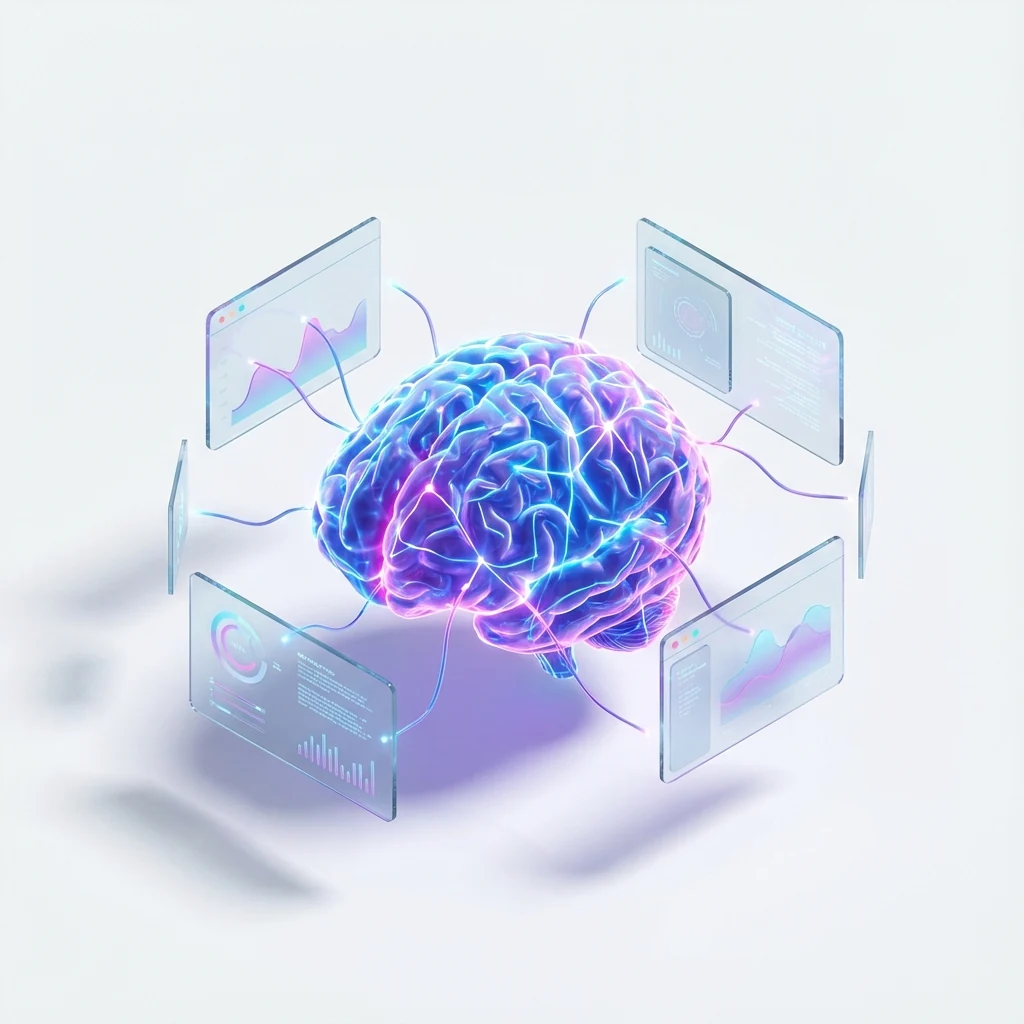
A luminous neural-form sculpture surrounded by translucent data panels, clean white studio space, cyan and violet light, balanced centered composition

AI output preview

A luminous neural-form sculpture surrounded by translucent data panels, clean white studio space, cyan and violet light, balanced centered composition

1/2
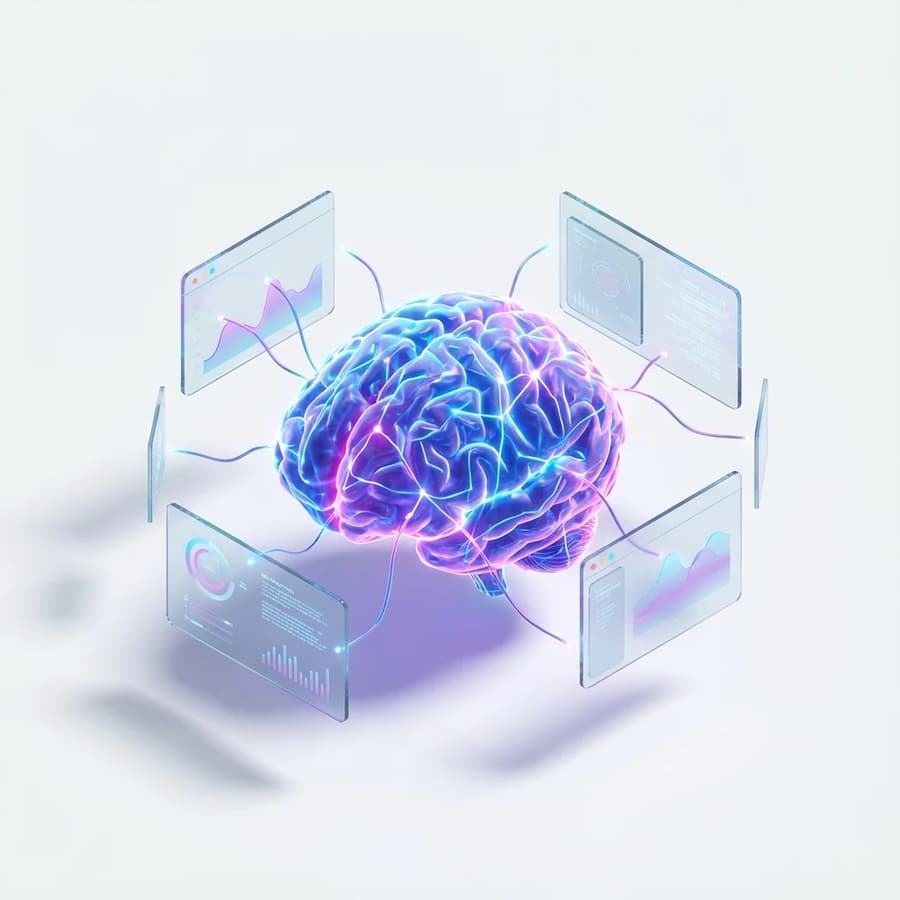
Creative visual composition for the FLUX 3 Image Generator

FLUX 3 AI Image Workflows for Creation and Editing

Explore an image workflow shaped around the FLUX 3 multimodal foundation. Turn detailed ideas into original visuals, plan reference-guided edits, render multilingual typography, and direct style, aspect ratio, and composition through clear creative instructions. The generator stays above this guide so you can test a prompt first, then use the sections below to improve posters, products, campaigns, editorial art, and everyday visual production.

Free FLUX 3 AI Image Generator & Editor Features

Build images with a model concept designed to understand visual references, written instructions, composition, and language together.

Unified Image Generation and Editing

FLUX 3 brings image synthesis and image editing into one multimodal foundation. That approach is useful when a task moves from creating a first concept to revising subject placement, background context, colors, materials, lighting, or typography. Instead of treating generation and editing as unrelated steps, creators can describe the intended result, preserve important visual information, and refine the scene through a connected workflow.

Detailed Prompt Understanding

The model is designed for complex creative instructions that combine a subject, action, environment, camera, layout, visual style, and constraints. A well-structured prompt can specify what belongs in the foreground and background, how the light should behave, which elements must remain consistent, and what mood the final image should communicate. This makes the FLUX 3 Image Generator relevant to both fast ideation and deliberate art direction.

Multilingual Typography and Flexible Formats

FLUX 3 emphasizes high-accuracy text generation across multiple languages while supporting varied styles, aspect ratios, and resolutions. Creators can plan poster headlines, package labels, title cards, social graphics, editorial layouts, and campaign visuals without separating the written message from the image concept. Explicit placement, hierarchy, spelling, contrast, and negative-space instructions help the typography work as part of the composition.

FLUX 3 Image Generation and Editing Workflows

Move from a clear visual brief to a refined image by separating the subject, composition, style, text, and revision goals.

Write a Structured Image Prompt

Begin with the main subject and the action or pose, then add environment, composition, camera distance, lens character, lighting, materials, color palette, and mood. Put essential constraints in direct language: state the number of subjects, the relationship between objects, the intended orientation, and any detail that must not change. For commercial work, include the audience and placement, such as a vertical skincare advertisement, a square product card, or a wide editorial header. A structured brief gives the FLUX 3 Image Generator a clearer hierarchy than a loose list of visual adjectives.

Draft an Image
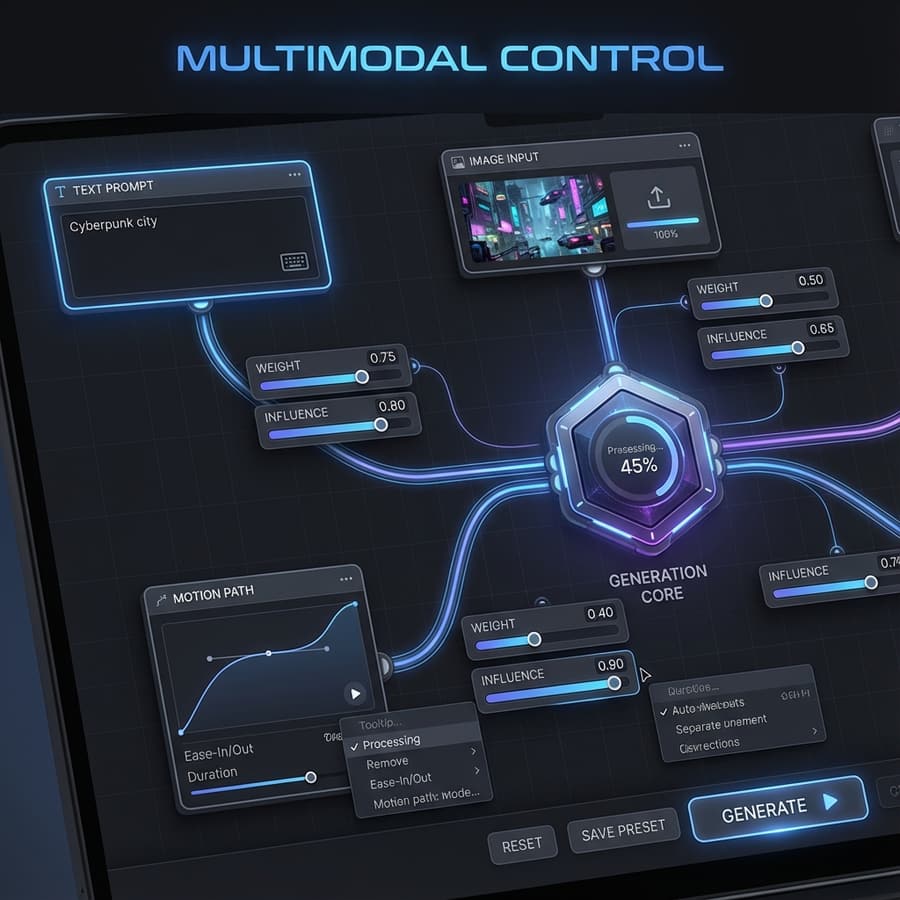
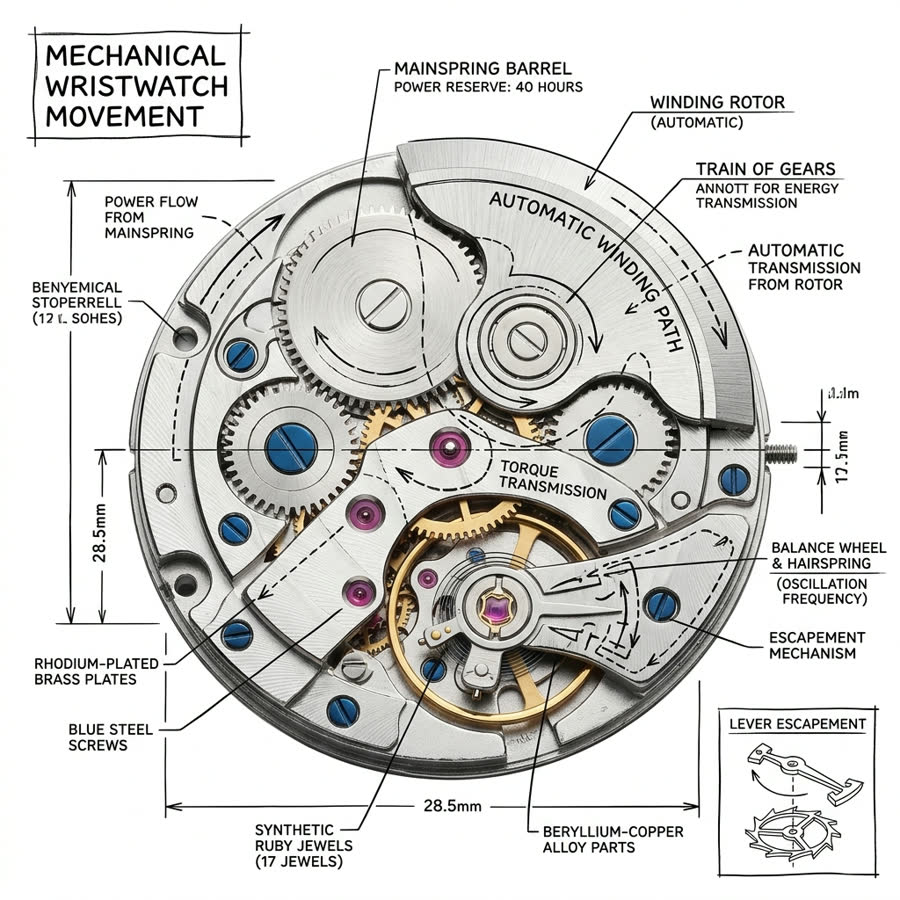
Structured prompting workflow for the FLUX 3 Image Generator

Use References to Guide Creation and Editing

A reference image can communicate composition, identity, product shape, color relationships, or art direction more efficiently than text alone. Decide what the reference should control and say so explicitly: preserve the silhouette but change the material, retain the character while moving to a new setting, or keep the layout while replacing the campaign theme. When editing, describe both the protected elements and the requested change. This reduces accidental drift and turns visual conditioning into an intentional part of the creative process.

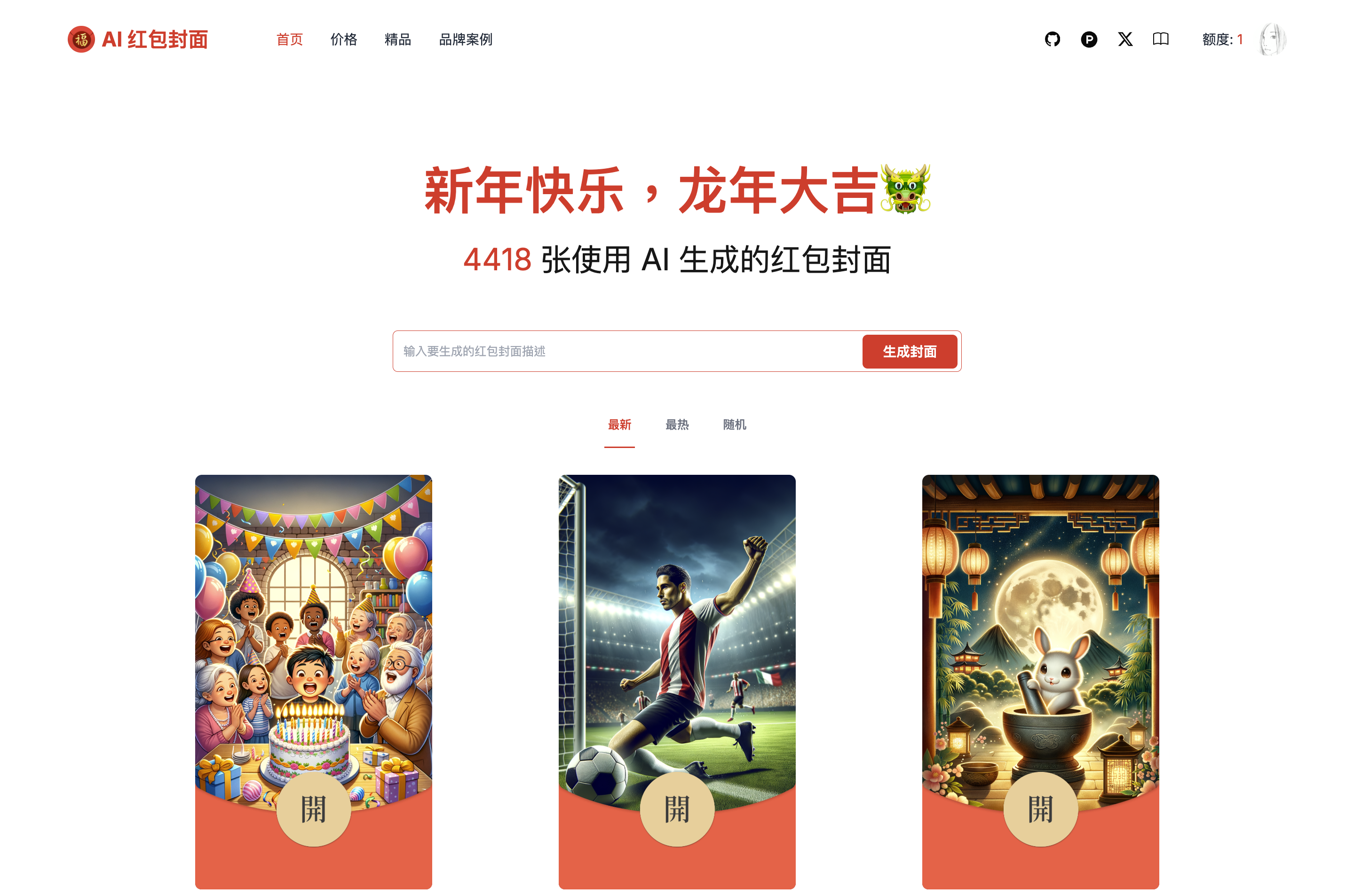
Reference-guided creation and editing with FLUX 3 Image

Design Multilingual Text Inside the Image

Quote the exact words that should appear, name the language, and describe placement, type style, scale, alignment, color, and contrast. For a poster, distinguish the headline from supporting copy and leave enough negative space around both. For packaging, state which words belong on the label and how the label follows the object perspective. Generate a clean first layout before adding dense copy. Short, clearly prioritized text usually gives you a stronger base for multilingual typography and later production cleanup.

Multilingual typography controls for FLUX 3 image creation

Refine One Creative Variable at a Time

Keep the strongest result as a baseline and identify the single weakest dimension: subject accuracy, composition, lighting, texture, typography, or style. Change that instruction while preserving the rest of the brief. Once the visual direction is stable, create format variants for social posts, banners, product listings, or editorial placements. This controlled iteration makes comparisons meaningful, protects successful details, and creates a repeatable workflow that teams can document across a campaign.

Refine a Concept
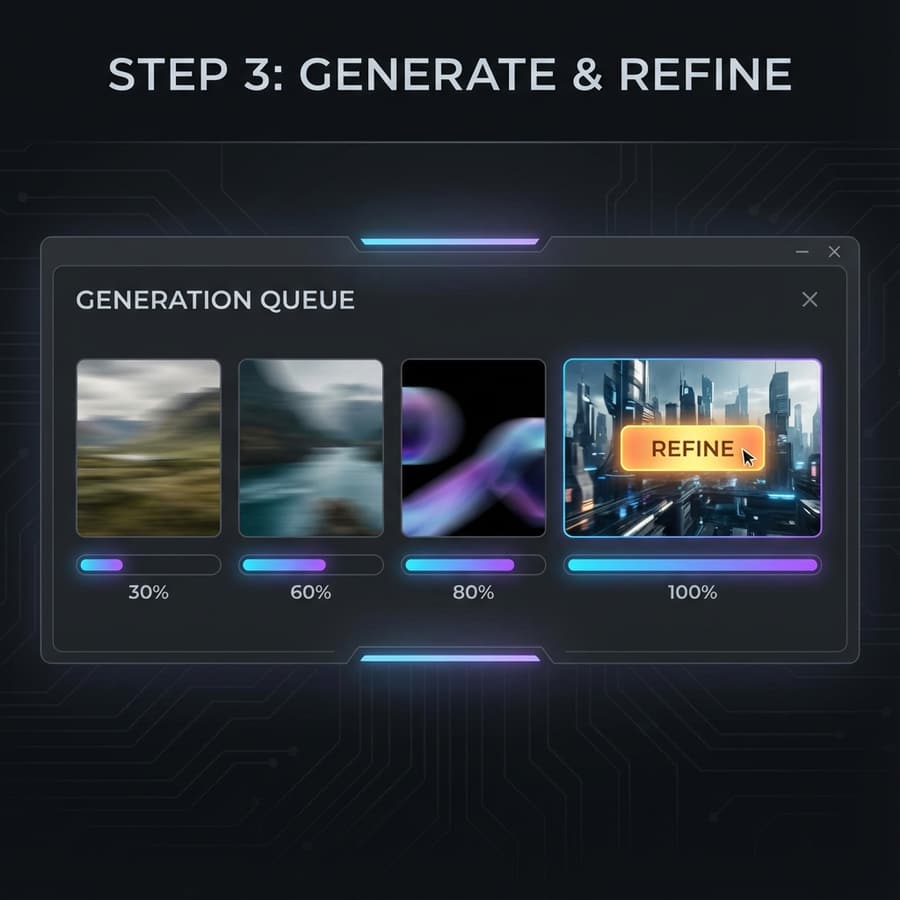
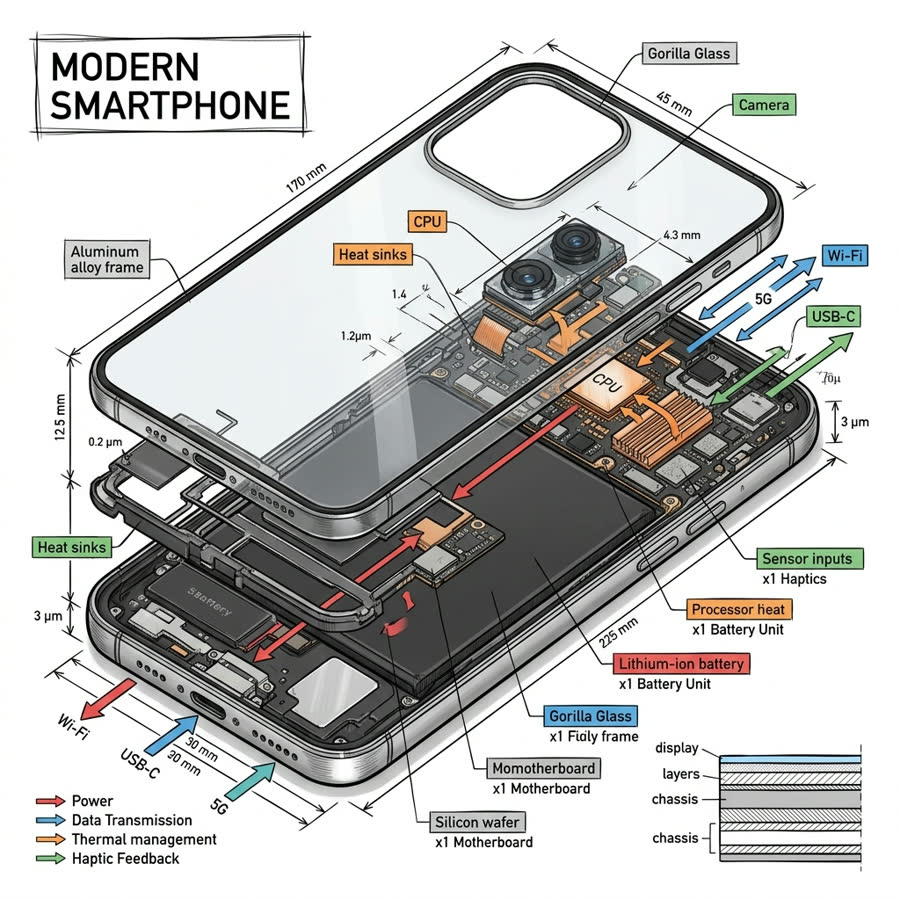
Iterative refinement workflow for FLUX 3 Image Generator results

FLUX 3 Prompt Examples for Generation and Editing

Use these structures as starting points. Replace the subject, exact text, protected details, and destination format instead of copying a vague style-only prompt.

Product Image Generation Prompt

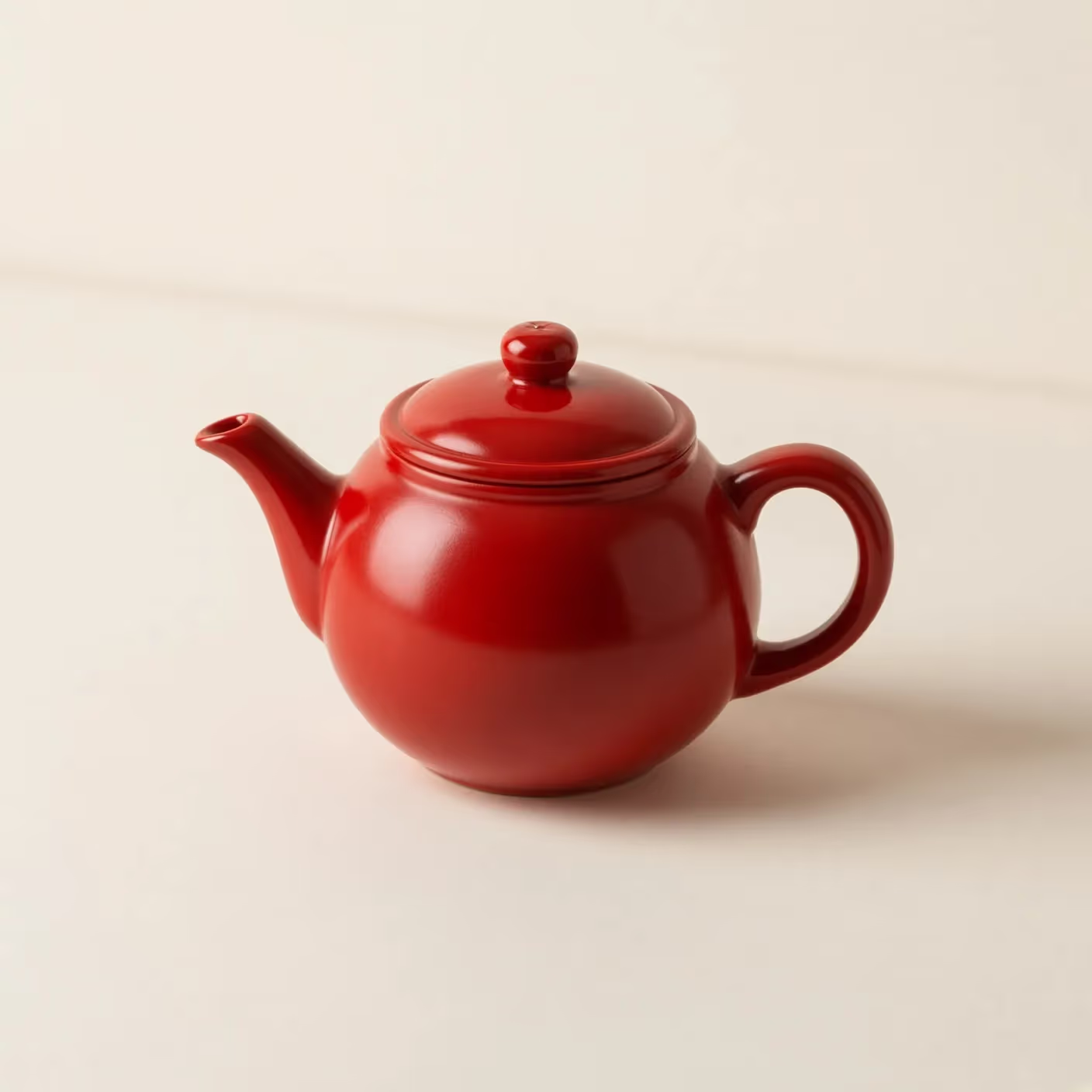
"A studio product photograph of a matte cobalt-blue travel bottle on pale limestone, three-quarter camera angle, soft morning window light from the left, realistic condensation, crisp material detail, warm neutral background, premium outdoor campaign art direction, no logo, no extra objects, 4:5 portrait." This prompt separates the object, surface, camera, light, material, exclusions, and output format.

Reference-Guided Editing Prompt

"Keep the uploaded chair's silhouette, proportions, camera angle, and stitching unchanged. Replace the upholstery with rust-colored bouclé, move the chair into a minimal sunlit reading room, add one walnut side table in the background, preserve realistic contact shadows, and do not alter the legs." A useful edit prompt identifies protected details before requested changes.

Multilingual Poster Prompt

"Create a vertical contemporary arts poster with the exact headline '未来在此' and the smaller English line 'THE FUTURE IS HERE'. Use a bold geometric sans-serif style, high black-and-coral contrast, clear hierarchy, generous margins, one abstract glass form, and legible text with no additional words." Quoted copy, language, hierarchy, placement, and exclusions make typography easier to evaluate.

FLUX 3 Image Generation, Editing, and Video Compared

Choose the workflow that matches the asset you need. Image generation starts from a written brief, editing starts from visual context, and video adds time, motion, shots, and sound direction.

Generate a New Image

Start with text when the deliverable is a still image and you need to establish the subject, composition, light, style, typography, and aspect ratio from scratch. Use concrete spatial relationships and a named destination such as a product card, poster, or editorial header.

Try Image Generation

Edit with a Reference Image

Start with an uploaded image when identity, product geometry, framing, layout, or visual style must remain recognizable. Choose an image-to-image scene exposed by the visible model selector, then state what must stay fixed and what should change.

Try Reference Editing

Create Motion with FLUX 3 Video

Choose the video path when the brief depends on movement, shot timing, camera travel, dialogue, ambient sound, music direction, or continuity across moments. Keep image and video intent separate so a still-image query is not diluted by motion-focused copy.

Explore FLUX 3 Video

FLUX 3 Image Generator Use Cases

Apply multimodal image generation and editing to visual tasks that need strong art direction, readable text, or consistent references.

Posters, Typography, and Editorial Design

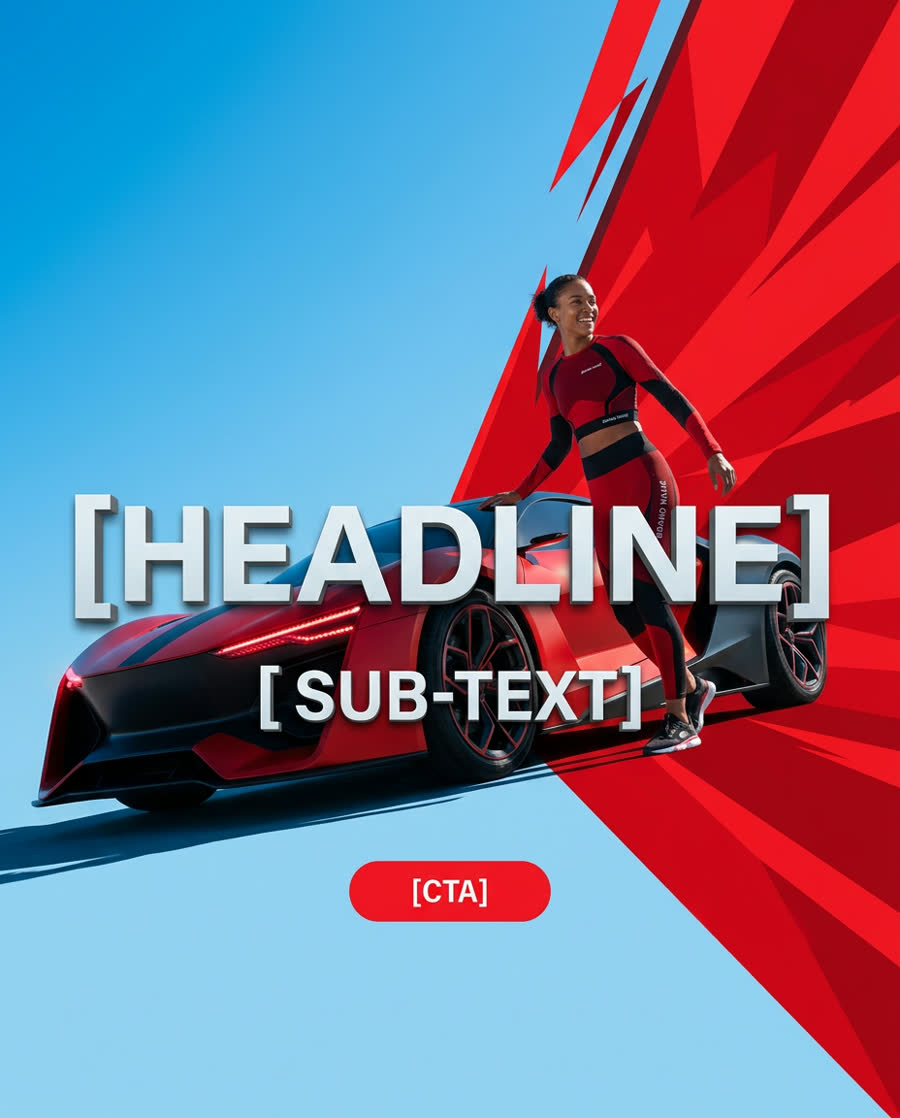
Create poster concepts, title cards, magazine-style compositions, event graphics, packaging directions, and social announcements. Include the exact headline in quotation marks and describe its hierarchy within the image. The FLUX 3 Image Generator is especially relevant when text, illustration, photography, and layout need to feel like one designed artifact rather than separate layers assembled without shared context.

Product and Campaign Visuals

Develop product hero images, launch concepts, ecommerce scenes, mood boards, and campaign variations. Describe the material, surface finish, reflections, camera angle, scale, supporting props, and brand palette. Reference-guided editing can help preserve a recognizable product while exploring new environments, seasons, or audiences. Always review exact geometry, labels, logos, and small print before using AI imagery in production.

Creative Editing and Style Exploration

Recompose an existing visual, explore cinematic or illustrative treatments, adjust atmosphere, replace backgrounds, and develop consistent directions from a reference. Clearly separate content changes from style changes so each iteration has a measurable goal. For a series, repeat stable descriptors for the subject, palette, lighting, and framing while changing only the scene-specific action or environment.

Free FLUX 3 AI Image Generator & Editor FAQ

Practical answers about free access, credits, sign-in, prompts, image editing, image-versus-video intent, and current model availability.

What is the FLUX 3 Image Generator?

FLUX 3 Image Generator refers to the image creation and editing capabilities within Black Forest Labs' FLUX 3 multimodal foundation. The model concept combines written instructions and visual context so creators can synthesize new images, revise existing compositions, work across styles and formats, and include multilingual text in a unified creative workflow.

Is the FLUX 3 AI Image Generator free?

The page and workflow guidance are free to open, but generation requires sign-in and credits. Eligible new accounts currently receive 40 welcome credits valid for 5 days, subject to anti-abuse eligibility. The default selected image model currently costs 50 credits per generation, so the welcome grant alone does not cover that request; lower-cost models shown in the selector may fit within the welcome balance. Daily check-in rewards or purchased credits can add to the balance. Free credits are limited and do not mean unlimited free generation.

How do I try the FLUX 3 AI Image Generator workflow?

Write or adapt a prompt in the generator at the top of this page, sign in, review the selected model, scene, and displayed credit cost, then generate when your balance is sufficient. For a new still image, use a text-to-image scene. For an edit, choose a visible model and image-to-image scene that accepts references, upload the source image, and describe both the protected details and the requested changes. Generated work is saved to your task history.

Can the FLUX 3 Image Generator workflow edit an existing image?

Image editing is part of the FLUX 3 image direction. A useful edit request explains which elements must stay stable and which elements should change. In the current workspace, use a model and scene that visibly supports image-to-image input; do not assume every selectable model accepts a reference. Preserve the product shape and camera angle while changing material and environment, or keep a character's identity while revising wardrobe, lighting, and background.

What makes a strong FLUX 3 image prompt?

A strong prompt names the subject, action, setting, composition, camera perspective, lighting, materials, palette, visual style, output format, and essential constraints. Use concrete relationships instead of stacking adjectives. State what belongs in the foreground, what must remain readable, and what should be excluded. For a series, repeat identity and art-direction details consistently across every prompt.

Should I use FLUX 3 Image or FLUX 3 Video?

Use the image workflow for a still deliverable such as a poster, product scene, editorial illustration, social graphic, packaging direction, or reference-guided edit. Use the FLUX 3 Video page when motion, shot duration, camera movement, dialogue, native audio, or continuity across moments is central to the brief. Keeping the two intents separate makes prompts easier to evaluate and prevents a still-image task from being overloaded with motion instructions.

How can I keep a series of images visually consistent?

Create a reusable style block that defines the subject identity, palette, lighting, lens character, composition rules, materials, and typography. Keep that block stable while changing only the scene, pose, or format. Use the strongest approved image as a visual reference, record prompt versions, and refine one variable at a time so the source of each improvement remains clear.

Is FLUX 3 Image available in this generator right now?

Not yet. Until a verified public FLUX 3 Image API is available, the generator defaults to Flux 2 Flex; the selected model shown in the interface is the source of truth.

Create with the FLUX 3 Image Generator Workflow

Turn a structured prompt or visual reference into a clear image concept, then refine composition, style, text, and format for your final use case.